
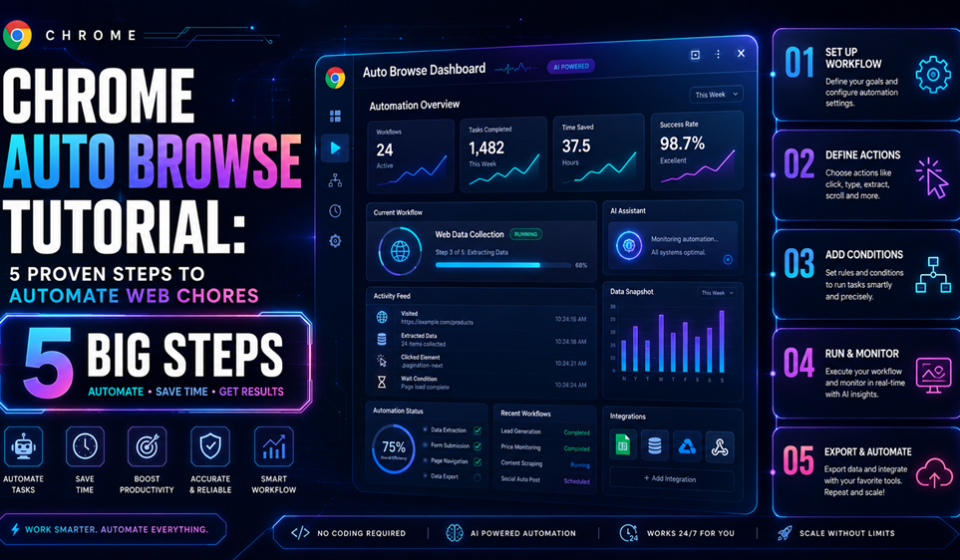

Chrome Auto Browse Tutorial : Are you tired of manually filling out repetitive forms, copying tracking numbers across tabs, or checking retail sites daily for inventory updates? The era of treating your web browser like a dumb static text window is officially over. If you aren’t exploiting the native AI systems hidden right inside your browser configuration, you are throwing away hours of free time every single week.
Learning how to navigate modern browser automation is the ultimate shortcut to operational freedom. Fortunately, Google’s latest updates have made executing these tedious processes completely friction-free. Thanks to built-in machine learning infrastructure, you no longer need complex coding setups or fragile third-party scrapers to manipulate web pages.
This complete Chrome auto browse tutorial will show you how to unlock these powerful native features, construct indestructible automation workflows, and effortlessly delegate your most boring digital chores to your browser.
The Friction of Daily Surfing: Why Manual Web Chores Drag You Down
The modern web is highly dynamic, yet our daily browsing habits remain shockingly manual. Every single day, professionals and casual consumers execute hundreds of identical click patterns. Whether it is pulling standard analytics reports, tracking product restocks, or transferring calendar reservations, these actions represent massive cognitive drain.
Historically, solving this meant installing sketchy browser macro extensions or writing complex scripts using developer tools. Unfortunatley, web interfaces change constantly, rendering traditional selector-based scrapers useless overnight. The moment a developer shifts a button layout or updates a CSS class name, standard automation scripts shatter into an unreadable mess of errors.
Deep Technical Analysis: The Architecture of Native Chrome Automation
To build robust workflows, you need to understand how native browser automation handles structural data. Modern Chromium infrastructure does not merely mimic mouse coordinates. Instead, it interacts directly with the browser’s internal systems, tapping into the structural node layers of the web page.
+-------------------------------------------------------+
|                 Gemini in Chrome                      |
|  Processes natural language and recognizes intent    |
+-------------------------------------------------------+
                           |
                           v
+-------------------------------------------------------+
|            Accessibility Tree (AXTree)                |
|  Translates UI elements natively (Buttons, Forms)     |
+-------------------------------------------------------+
                           |
                           v
+-------------------------------------------------------+
|             Chromium Core Execution Engine            |
|  Fills forms, navigates pipelines, clicks elements    |
+-------------------------------------------------------+
Rather than getting tricked by moving visual elements or complex styling tags, native automation reads the accessibility tree (AXTree). This framework translates web layouts into clear structural entities (such as “input field for email” or “checkout button”). By blending this deep structural awareness with conversational AI models, Google Chrome can easily understand the underlying context of a page, allowing it to navigate complex checkout funnels or booking steps even if the website updates its visual layout.
Step-by-Step Guide: Deploying Your Native Chrome Auto Browse Workflows
Setting up native task automation inside your browser requires no programming expertise, but it demands an understanding of how to sequence your parameters properly. Follow this proven progression to configure your very first autonomous task loop successfully.
Real Use Cases: Driving Efficiency in Your Daily Digital Routines
The practical applications of mastering a Chrome auto browse tutorial extend far beyond simple tech novelty. E-commerce enthusiasts use these systems to monitor highly competitive inventory systems, allowing the browser to track restocks and instantly stage an checkout cart the split-second a product drops.
Busy professionals leverage native automation to manage multi-app administrative tasks. For example, you can command the browser to scan an open confirmation page from an email client, cross-reference calendar availability across a different tab, and instantly input an event into Google Calendar without a single manual copy-paste action.
Expert Tips for Crafting Flawless Automated Workflows
Getting the highest level of reliability out of your browser-based agent requires a deliberate prompting style. Because native browser execution relies on interpreting your contextual intents, clarity is absolutely paramount.
- Anchor Your Targets Explicitly: When initiating a task, state exactly which tab or URL source the browser should look at to eliminate logical confusion.
- Keep Prompts Action-Oriented: Use direct command verbs like “Extract,” “Populate,” or “Navigate” to keep the browser execution engine aligned with your goals.
- Isolate Isolated Login States: To avoid security blocks or login loops, make sure you are actively authenticated into target web portals before executing an automation string.
Common Pitfalls to Avoid in Web Automation
The biggest trap users fall into when trying a Chrome auto browse tutorial is attempting to execute hyper-complex, multi-site string operations all at once. Forcing the browser engine to jump across dozens of unindexed domains simultaneously increases the risk of memory bottlenecks and operational timeouts.
Security Warning: Never instruct any automated system to handle, input, or save raw, unencrypted credit card security codes or foundational master passwords within exposed plain-text chat boxes or unverified extension inputs.
Pros and Cons of Native Browser Automation
Evaluating the trade-offs of native browser systems helps ensure you use the absolute best tool for your specific operational goals.
Pros:
- Extremely lightweight execution with zero local developer environment configurations required.
- Drastically lowers the barrier to entry compared to coding heavy scripts in Puppeteer or Playwright.
- Excellent contextual resistance against breaking, unlike brittle visual macro tools.
- Completely free and built directly into standard consumer browser ecosystems.
Cons:
- Lacks the deep parallel scaling capacity required for enterprise-grade data scraping pipelines.
- Dependent on the ongoing structural health and performance of the open browser window.
- Advanced orchestration functions remain restricted to specific geographic regions and account tiers.
Comparing Automation Approaches: Native vs. Third-Party
| Feature Set | Native Chrome Auto Browse | Traditional Macro Extensions | Developer Frameworks (Playwright) |
| Setup Difficulty | Zero configuration | Low to Medium | High (Requires coding) |
| Layout Flexibility | High (Context-aware) | Extremely Low (Brittle) | Medium (Selector dependent) |
| System Overhead | Minimal memory draw | Moderate extension load | High local machine load |
| Security Handling | Sandboxed by Google | Varies by developer | User managed |
Final Verdict: Embrace the Autonomous Web Today
The true value of learning a Chrome auto browse tutorial lies in reclaiming your finite human focus. By offloading boring, non-creative digital chores to native AI execution frameworks, you free up massive amounts of mental energy for tasks that truly matter.
Native browser tools are rapidly evolving from simple search boxes into fully proactive digital assistants. Take five minutes today to explore these flags, input your first structural prompt, and watch your daily manual routines effortlessly fade away into background automation.
Frequently Asked Questions
Is using a Chrome auto browse tutorial safe for my personal bank accounts?
Yes, leveraging native automation features within Google Chrome is completely safe because all operations remain fully sandboxed inside your secure browser profile. The system utilizes Google’s enterprise-grade security architecture to protect local operational data from leaking externally.
Do I need to understand coding to complete a Chrome auto browse tutorial?
Not at all. Unlike classic software automation setups that force you to master complex languages like Python or JavaScript, native Chrome tools utilize natural language interfaces, meaning you can direct web pages using standard conversational commands.
Can native Chrome automation solve complex image-based CAPTCHAs?
No, native automation models are specifically engineered to eliminate tedious user interaction tasks and standard administrative text workflows. They purposefully do not feature bypass tools designed to circumvent advanced anti-bot protections or security CAPTCHA fields.
Read More…
Explore more guides and updates on Consumer Apps: