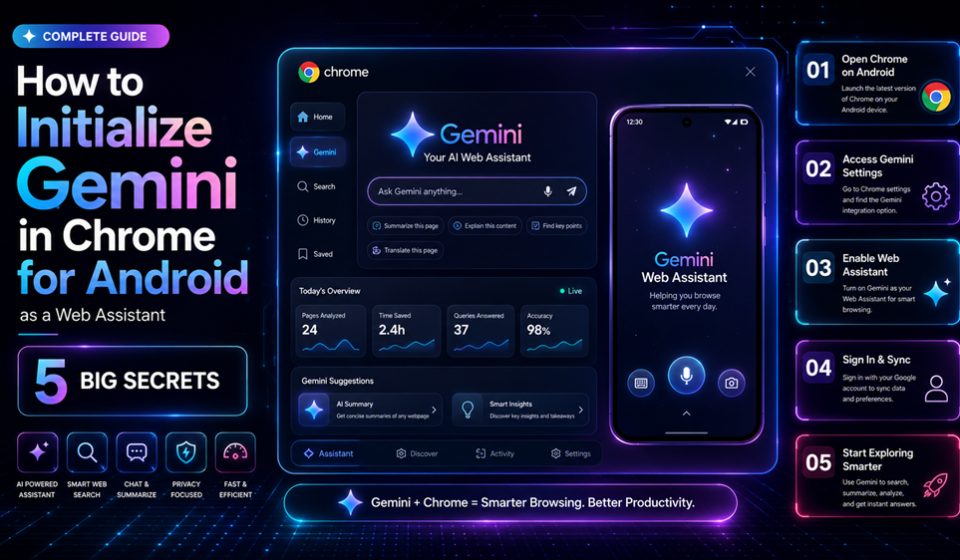

Are you ready to transform your smartphone into a highly proactive productivity engine? For the longest time, running deep artificial intelligence workflows required jumping back and forth between separate apps and web tabs. Thankfully, those disruptive days are entirely over. Following recent platform announcements at Google I/O 2026, a groundbreaking integration brings a native AI companion directly into your mobile workspace.
Many users are still completely unaware that this native web companion exists, missing out on massive mobile efficiency. By mastering the activation sequence for Gemini in Chrome for Android, you unlock immediate page summaries, deep context-aware answers, and cross-app automation.
Let’s dive directly into the exact technical blueprint required to initialize, configure, and maximize this game-changing mobile AI tool today.
The Core Problem with Standard Mobile Browsing
Standard mobile browsing has felt remarkably static for over a decade. When you encounter a long research paper, a complex technical guide, or a messy e-commerce listing on your phone, processing that information remains highly tedious. Copying text, switching to a standalone AI application, and managing separate histories ruins your flow state.
Furthermore, traditional mobile assistants lack real-time screen and document context. They cannot natively read the specific structural layout of the web page you are actively viewing. This disconnect limits your ability to extract immediate data, handle swift form fills, or seamlessly transfer browser details directly into your daily productivity stack.
Technical Architecture of the Mobile Web Assistant
The integration of Gemini in Chrome for Android is built squarely on Google’s advanced Gemini 3.1 model architecture. According to technical documentation on the Chrome for Developers platform, this framework leverages client-side processing alongside cloud-assisted execution to handle heavy linguistic operations smoothly.
This framework introduces a highly secure, context-aware environment within the mobile architecture. The browser passes localized DOM properties to the assistant securely, preventing prompt injection attacks while maintaining zero-latency processing.
By linking this layout with Personal Intelligence protocols, the engine safely connects your active tab data with other local apps like Gmail, Keep, and Google Calendar.
How to Initialize Gemini in Chrome for Android
Setting up your mobile browsing assistant requires a specific device profile and alignment check. Make sure your device is updated to at least Android 12, possesses a minimum of 4GB of RAM, and runs the absolute latest version of the official mobile browser application.
Real-World Use Cases for Immediate Productivity
Once initialized, the day-to-day utility of this framework alters how you handle routine digital chores. Imagine studying for an intense certification exam on your commute; you can tap the assistant panel and request, “summarize this technical layout into five core bullet points.”
Another major breakthrough is the highly efficient auto browse pipeline. If you pull up a comedy show ticket confirmation page inside your browser, you can command the system to automatically source and reserve a nearby parking slot using integrated SpotHero plugins.
Similarly, users can utilize the Nano Banana image feature to select any online photo and instruct the assistant to completely alter visual styles or convert page data into a clean infographic on the fly.
Expert Tips for Google Discover Optimization
Maximizing the reach of AI-driven mobile content means structuring information in a way that modern engines love to parse. If you are creating web content meant to be summarized by this assistant, keep these strategies top of mind:
- Implement Flawless Schema Markup: Ensure your web assets utilize structured data to help mobile crawlers parse semantic variations accurately. Learn more about maintaining high search health directly via the Google Search Central documentation.
- Prioritize a Mobile-First Layout: Keep your content blocks distinct, utilizing clear heading tags so the layout reads beautifully when condensed by a smartphone assistant.
- Write Authoritative Lead Paragraphs: State your primary thesis early using clear, declarative active voice sentences to give the model a crisp starting point.
Common Activation Mistakes to Avoid
The most common mistake users make is forgetting to activate the Personal Intelligence permission setting. If this layer remains disabled, your browser companion cannot pull relevant details from your Gmail or drop cooking ingredients directly into your Google Keep lists.
Another frequent pitfall is attempting to initialize the system while using an outdated operating system profile. Devices running software older than Android 12 will not render the dedicated toolbar icon.
Lastly, do not confuse this feature with standard Google assistant screen search functions. This tool is built directly inside the web browser application framework, meaning it requires active web page elements to execute specialized, agentic tasks properly.
Pros and Cons of Mobile Browser AI Integration
Integrating a heavy machine learning model directly into your primary web application has clear advantages alongside minor operational trade-offs.
Pros
- Eliminates all app-switching friction, drastically accelerating your research workflows.
- Provides robust, real-time contextual summaries based on active web tab elements.
- Auto browse allows for secure, automated execution of routine digital errands with a single tap.
Cons
- Initial rollouts require strict hardware compliance (minimum 4GB of RAM).
- Heavy contextual processing can increase battery consumption on older phone models.
Final Verdict
The launch of Gemini in Chrome for Android marks a massive shift toward an agentic web experience on mobile devices. By consolidating summarization, automated form filling, and cross-app coordination into a native panel, it successfully removes traditional browsing roadblocks. Take a few minutes to complete the initialization steps, configure your security preferences, and start experiencing a vastly smarter internet today.
Frequently Asked Questions
Why is the Gemini in Chrome for Android icon missing on my mobile phone?
The icon requires an active update from the Google Play Store, an operating system profile running Android 12 or newer, and at least 4GB of device RAM. Ensure your system meets these baseline hardware metrics.
Is my private data safe when using Gemini in Chrome for Android?
Yes, the framework operates with tight, built-in security protocols. Sensitive automated actions initialized via auto browse will always pause and demand an explicit physical confirmation from you before finalizing any task.
Can Gemini in Chrome for Android interact with other brand-new 2026 features?
Absolutely. The assistant integrates smoothly with new system upgrades like the Rambler voice tool and the custom widget generator, allowing you to instantly transform web insights into permanent home screen tools.
Read More…
Explore more guides and updates on Gproductindex: