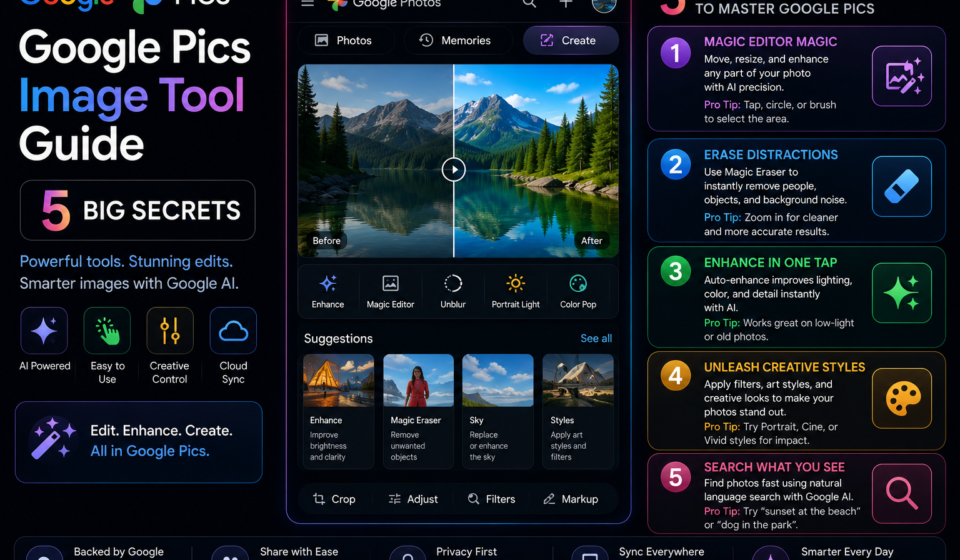

The landscape of professional image editing just received a massive injection of predictive power. Formally unveiled at Google I/O 2026, the widespread rollout of the Google Pics image tool marks an aggressive evolution away from random, unpredictable prompt-based graphics generation toward localized, pixel-perfect control. Seamlessly built straight into the core infrastructure of Google Workspace, this standalone app turns everyday workers into precision designers.
Rather than forcing you to throw out an image because a single element looks slightly distorted, the software brings object segmentation directly into your browser window. It separates distinct canvas items automatically, enabling granular adjustments without disturbing background pixels.
Whether you are a marketing professional updating corporate banners or a manager cleaning up workflow charts, mastering the Google Pics image tool will completely eliminate your reliance on bloated third-party design subscriptions.
The Problem: The Unpredictable Gamble of “Prompt-and-Pray” AI Editing
Traditional artificial intelligence image generators suffer from a frustrating consistency problem. In the past, editing was an absolute gamble: you would prompt an engine, receive a decent baseline graphic, but notice a small error like an incorrect shoe color, an unreadable text block, or an awkward background object. To fix it, your only choice was to rewrite the phrase, spin the wheel again, and hope the system wouldn’t alter the rest of your composition.
The targeted introduction of the Google Pics image tool directly addresses this design bottleneck. By bringing semantic understanding into the layout, the system eliminates the annoying trial-and-error cycle. You select specific elements manually, pass direct textual corrections, and run instant, context-aware visual transformations without causing structural damage to the surrounding artwork.
Deep Dive: The Core Editing Capabilities of Google Pics
To successfully steer this updated production workspace, creators must familiarize themselves with the toolsets embedded inside the layout canvas. The application organizes its key editing attributes across three operational pillars:
| Interface Modality | Underlying AI Engine | Primary Project Benefit |
| Object Segmentation | Image Object Remover | Move, resize, swap, or erase individual elements without altering background textures. |
| Inpainting Typography | Intelligent Text Brush | Automatically detects image copy, replacing words while preserving original fonts. |
| Smart Asset Translation | Unified Image Translator | Instantly converts signs, diagrams, or posters into dozens of native target languages. |
By defaulting to the high-efficiency speeds of Gemini 3.5 Flash, processing latency drops down to a minimum. The canvas recalculates depth, lighting shifts, and complex color boundaries in fractions of a second, demonstrating the remarkable fluidity of the Google Pics image tool engine.
Step-by-Step Guide: Executing Object Removal and Text Translations
Ready to clean up distracted vacation snapshots or translate an international marketing poster layout? Follow this precise sequence to utilize the advanced AI editor safely.
1.Access the Dedicated Pics Workspace Panel:Environment Check.
Log into your active profile and confirm your account parameters are linked to a Google AI Pro or Ultra tier subscription. Launch the dedicated application dashboard through your primary Google Drive or Workspace launch matrix.
2.Load Your Target Asset to the Canvas Grid:Step 2.
Drag and drop your primary file directly into the main viewport area. The underlying infrastructure will instantly run an automated scan to index embedded text clusters and recognize distinct foreground objects.
3.Trigger the Precision Object Removal Brush:Step 3.
Click the Object Segmentation icon on the floating toolbar panel. Simply click or draw a loose line around the distracting element you want gone—such as an unwanted background tourist—to isolate it cleanly.
4.Execute the Eraser Call via Context Prompts:Step 4.
Type your exact correction into the active contextual box. Submit a simple directive like “Remove this person and cleanly fill the background space with matching mountain foliage” to execute your clean object removal patch.
5.Initialize Multi-Language Image Text Translations:Step 5.
Toggle over to the Language Tools option on your active sidebar tray. Select your preferred target language output and click translate to see foreign signposts or overlay graphics swap text styles instantly.
Expert Design Secrets for Superior Editing Outputs
- Leverage the Power of Contextual Comments: Do not limit your instructions to single-word inputs. Tap into the intelligence layer of the Google Pics image tool by writing detailed change comments like: “Swap this corporate blue winter jacket for a sleek, dark-teal windbreaker while keeping the original zipper shadow lines intact.”
- Isolate Artifacts with the Grab Text Utility: When working on dense graphic design projects containing embedded lettering layers, use the brush tools to extract typography out into standalone editable text cells before modifying your underlying imagery.
- Keep High-Stakes Presets Tucked in Notebooks: If your company enforces a distinct color palette or style matrix across its campaign materials, save those parameter guidelines inside your linked AI Notebook directory for easy one-click retrieval.
Common Implementation Pitfalls to Avoid
- Forgetting to Clean Up Leftover Artifact Boundaries: If the automation tool occasionally leaves soft shadow halos behind after a heavy object removal pass, use the manual brush tool to lightly trace the leftover edges for an ultra-clean patch.
- Overloading the Canvas Layout with Contradictory Filters: Attempting to overlay dynamic lighting filters like “Golden Hour” over reference graphics that display dark night-sky elements creates visual rendering conflicts. Match environmental conditions appropriately.
- Running Complex Local IO Actions without Stable Cloud Pipes: Because the intensive segmentation processing happens entirely across Google Cloud virtual machines, executing multiple canvas revisions on weak mobile data connections can lead to system timeout delays.
Pros and Cons of Google’s Advanced Image Dashboard
Pros
- Flawless Design Continuity: The system locks down original image details, resolutions, and background patterns during isolated object changes.
- Slick Font Style Preservation: The translation features replace embedded words while matching the original layout font styles, sizing, and colors.
- Seamless Workspace System Hookup: Deploys edited assets directly into Docs, Slides, and Drive folders with a single click.
Cons
- Premium License Barrier: Gaining unrestricted access to the application canvas requires an active, high-tier corporate plan or an individual Google AI Pro subscription seat.
- Strict Regional Feature Availability Limits: Specific advanced generative tools and secondary translation configurations remain limited to early localized beta areas during the rollout window.
Real-World Creative Production Use Cases
- Instant Corporate Asset Localization: Global marketing groups drop localized event imagery into the canvas, letting the machine instantly swap foreign labels and billboard messaging into matching target languages in seconds.
- Rapid Social Media Content Cleaning: Content managers take standard phone captures, using the object segmentation brush to instantly erase background clutter, photobombers, or ugly street trash before publishing.
- Fast-Paced E-Commerce Prototyping: Digital retail squads upload raw product photos into the Google Pics image tool interface, typing simple text adjustments to swap apparel colors, modify product fabrics, or adjust environmental lighting conditions instantly.
Creative Canvas Summary & Tactical Takeaways
Taking a few moments to understand the core capabilities of the Google Pics image tool provides professionals with an extraordinary, highly precise command desk to overhaul modern visual design. Moving beyond basic, un-formatted AI prompt windows allows for fluid object transformations and style translations that preserve every ounce of your asset’s original resolution. Start adjusting your design pipelines today by launching a trial workspace canvas, experimenting with targeted item erasures, and utilizing direct textual corrections to build a streamlined media workflow.
Explore More Google Products & Tools
To see how these new high-speed models fit into Google’s broader software roadmap, check out our comprehensive Google Product Index Categories Hub on the homepage to browse through active enterprise toolsets.
Google Product Index Categories Hub:
https://www.google.com/search?q=https://gproductindex.com/
To track how these new tools fit into the wider landscape of active and legacy applications, you can explore our comprehensive Google Products Database Hub right on our homepage.
Google Products Database Hub:
10. FAQ Schema
How does the Google Pics image tool handle text translations without ruining backgrounds?
The protocol utilizes advanced inpainting models backed by font-matching networks. The system isolates the text bounding box, erases the original words while filling the backing textures, and superimposes your new target language translation using an identical layout style match.
Can I run this advanced editing app on a standard free Google profile?
No, precision generative capabilities require access to premium system resources. Generally available functionality is deployed exclusively to Workspace enterprise accounts (Business Standard or higher) alongside individual consumer profiles holding an active Google AI Pro or Ultra plan.
What is the primary advantage of object segmentation over standard erasing?
Standard erasers simply wipe out pixels blindly, forcing an AI engine to guess what background should fill the gap. Object segmentation structurally understands what an element is (like an animal or clothing item), allowing users to scale, shift, or recolor that object without affecting the background layers.
Would you like me to highlight specific procedural configurations for routing multi-app data pipelines inside Vertex AI, or should we examine how to apply safety restrictions using Google’s native Model Armor parameters?