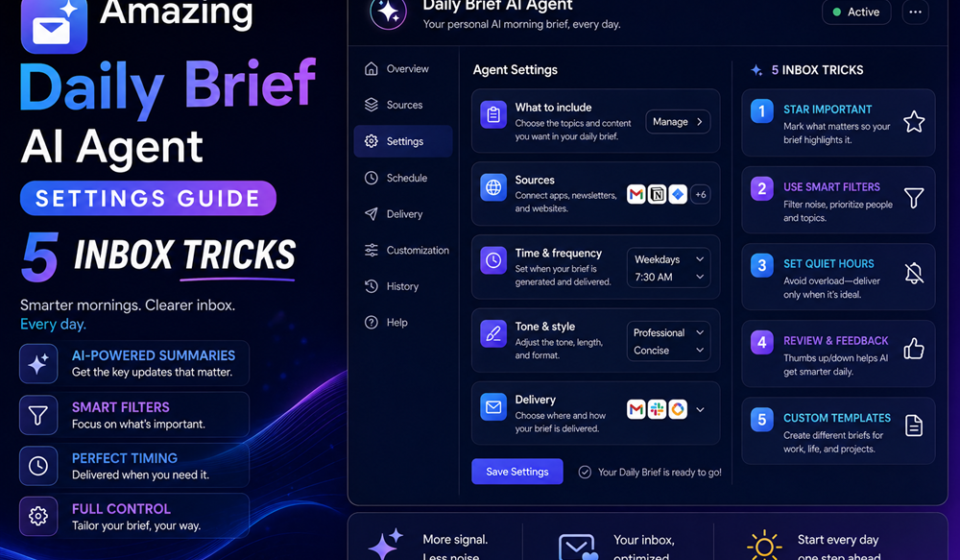

The days of drowning in unread message logs are officially behind us. Announced fresh out of Google I/O 2026, the global rollout of the proactive morning digest has fundamentally shifted how we check our accounts. Instead of launching a flat, static list of items, modifying your Daily Brief AI agent settings allows a cloud-native background companion to synthesize data overnight and deliver a prioritized summary directly to your dashboard.
The system relies on Gemini 3.5 Flash and a continuous state processing layer to read across your personal architecture. It extracts implied action tasks, highlights financial alerts, and queues next steps before you finish your morning coffee.
If you are a busy professional ready to curb inbox fatigue, this operational guide walks through exactly how to adjust your Daily Brief AI agent settings to safely parse your Gmail threads.
The Problem: The Chaos of Unstructured Email Overload
Traditional email filters are fundamentally broken. Standard priority folders rely on rigid, keyword-matching rules that fail to understand true intent. If an emergency client message, a casual subscription confirmation, and a promotional newsletter drop into your inbox at 3:00 AM, legacy systems view them with nearly identical structural importance. You wake up to a wall of text, wasting precious energy deciding where to click first.
Adjusting your Daily Brief AI agent settings directly solves this cognitive bottleneck. Rather than waiting for you to launch a manual search call, this agent operates proactively. It parses, categorizes, and scores every inbound thread based on your historical interaction records, making sure high-stakes communications bubble straight to the top of your layout.
Deep Dive: The Operational Structure of the Daily Brief
To optimize your daily digest, you need to master the core intelligence blocks located within the main navigation panel. The software uses three distinct data layers to curate your morning brief:
| Interface Control Layer | Underlying Engine | Primary Functional Behavior |
| Top of Mind Section | Priority Inbox Parsing | Isolates urgent action triggers, immediate meeting conflicts, and high-impact billing events. |
| FYI Feed Container | Contextual Filtering | Tracks secondary, non-urgent information logs like delivery notifications or booking changes. |
| Looking Ahead Mode | Personal Intelligence | Syncs with your historical Gemini chat logs to remind you of ongoing projects and goals. |
By modifying these parameters within your Daily Brief AI agent settings, you prevent the engine from pulling junk newsletters, while ensuring critical business updates stay front and center.
Step-by-Step Guide: Tuning Your Agent Settings for Gmail Tracking
Follow this precise sequence to locate the configuration menu, unlock the app extensions, and deploy strict safety parameters for your personal data stack.
1.Navigate to the Core Gemini Sidebar Dashboard:Initial Workspace Access.
Open your desktop web browser or launch your mobile application wrapper. Access the primary left-hand side workspace navigation area to locate the dedicated active brief profile hub.
2.Access the Global Agent Management Console:Step 2.
Click on your user profile node and select the configuration option. Locate the sub-panel designated for your Daily Brief AI agent settings to review your current asset integration contracts.
3.Authorize the Secure Google Workspace Extensions:Step 3.
Toggle the permission access controls to Enabled for target tools like Gmail, Calendar, and Tasks. Make sure to activate the Personal Intelligence and Memory keys so the system can recall long-term conversation context.
4.Map Your Preferred Delivery Trigger Schedule:Step 4.
Define your ideal morning delivery block. Use the timing sliders to specify your routine operational window—such as 7:30 AM—instructing the cloud engine to compile and organize your data before you begin your workday.
5.Establish Explicit Sender Filtering Profiles:Step 5.
Navigate down to the advanced filtering exclusions panel. Add specific domain exclusions, newsletter tags, or cold-outreach labels to keep low-value marketing content completely out of your priority summary pipeline.
Expert Inbox Tricks for Premium Summary Outputs
- Inject Contextual Grounding Sheets: Want highly customized prioritization? Upload a text file detailing your current active clients, ongoing enterprise server builds, or primary business goals directly into the Memory panel.
- Train Your Worker via Direct Feedback Loops: Don’t let bad interpretations sit. Use the interface feedback triggers to downvote irrelevant summaries, forcing the system to automatically adjust its scoring parameters for the next morning.
- Weave Tracking Hooks into Workspace Labs: If you balance separate organizational pipelines, use the advanced settings menu to link external testing modules, making sure corporate accounts sync safely into your personal feed views.
Common Configuration Mistakes to Avoid
- Disabling the Underlying Memory Extensions: Turning off your Personal Intelligence permissions severely handicaps the agent. Without historical context, the system cannot match incoming emails to your active, real-world projects.
- Leaving Noisy Notification Triggers Unchecked: If you permit the agent to fire alerts for every secondary “FYI” item, you defeat the purpose of an automated digest. Limit notifications exclusively to the “Top of Mind” layer.
- Overlooking Corporate Domain Admin Blocks: If your enterprise work profile won’t populate a digest card, verify your corporate console. Workspace account managers must explicitly whitelist agentic features before individual team profiles can activate them.
Pros and Cons of a Proactive AI Mail Assistant
Pros
- Drastic Reduction in Triage Fatigue: Completely eliminates the stress of scanning through dozens of raw unread messages at the start of your day.
- Cross-Application Context Stitching: Gathers data from separate windows like Gmail, Calendar, and Tasks, dropping them into one unified, clean view.
- True Proactive Automation: Works in the background entirely on its own, delivering a curated brief before you ever type a single prompt.
Cons
- Exclusive to Paid Premium Tiers: Unlocking the continuous digest platform requires a commitment to high-tier plans starting at $20 to $100 monthly per seat.
- Siloed Inside One Ecosystem: Cannot naturally index information stored inside separate external apps like Apple Calendar, Outlook, or third-party task boards.
Real-World Productivity Use Cases
- High-Throughput Startup Operations: A tech founder configures their workspace settings to automatically scan overnight message flows, highlight contract approvals, and surface missing invoice files by 8:00 AM.
- Async Engineering Project Tracking: Dev leads use the agent to synthesize shift logs across multiple time zones, summarizing code handoffs and upcoming deadlines while filtering out automated alert noise.
- E-Commerce Account Balance Monitoring: Independent digital store owners leverage the “Top of Mind” detection filters to instantly flag hidden billing alterations, double-booking slips, or merchant payouts across connected accounts.
Configuration Summary & Tactical Summary
Taking a few minutes to customize your Daily Brief AI agent settings completely changes how you interact with your inbox. By activating your workspace integration toggles, adjusting your morning delivery schedule, and refining your priority filters, you convert a noisy email feed into a clean, actionable map. Begin your setup by verifying your account tier status, testing the default summary views, and tuning your feedback parameters to craft the ultimate automated morning routine.
Explore More Google Products & Tools
To see how these new high-speed models fit into Google’s broader software roadmap, check out our comprehensive Google Product Index Categories Hub on the homepage to browse through active enterprise toolsets.
Google Product Index Categories Hub:
https://www.google.com/search?q=https://gproductindex.com/
To track how these new tools fit into the wider landscape of active and legacy applications, you can explore our comprehensive Google Products Database Hub right on our homepage.
Google Products Database Hub:
10. FAQ Schema
Where can I find the Daily Brief AI agent settings menu inside my account?
You can access these options directly within the main sidebar configuration panel of your Gemini application window. Simply tap your account avatar badge, open the preferences menu, and look for the extensions control interface.
Does the morning brief feature function on personal email accounts?
Full proactive generation requires an active premium subscription tier, such as a Google AI Plus, Pro, or Ultra tier profile. Standard free accounts receive basic, reactive inline email summaries rather than the comprehensive, overnight morning digest experience.
How does the system handle data security and private information leaks?
The platform runs its processes securely through internal, dedicated system API endpoints within the Google Cloud infrastructure layer. It maps data directly through verified structures rather than reading your screen pixels, ensuring your sensitive inbox logs remain entirely confidential.