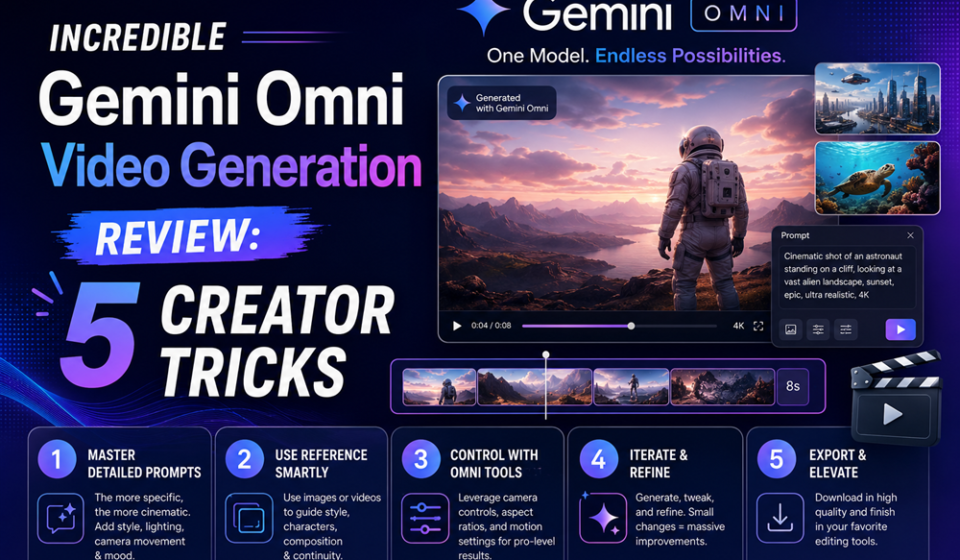

The digital media landscape just crossed a critical milestone. Released fresh out of Google I/O 2026, the official rollout of Gemini Omni video generation has completely upended how short-form creators, marketers, and editors produce high-impact content. Replacing the legacy Veo frameworks inside the Google ecosystem, this unified model treats video editing not as a sequence of isolated image frames, but as an omnimodal object.
Whether you are pushing faceless video channels on Instagram Reels or optimizing engagement metrics on YouTube Shorts, mastering Gemini Omni video generation fundamentally alters your production workflow.
Our practical hands-on evaluation breaks down how this model operates, tracks its performance across critical physics engines, and shares elite strategies to maximize your workflow efficiency.
The Problem: The Disconnected Fragmented Video Pipeline
Traditional AI video tools suffer from a frustrating, disconnected assembly problem. Creators typically face a disjointed multi-step pipeline: you generate a silent video clip in one app, open an external platform to upsample the visual fidelity, jump into audio software to generate matching sound effects, and finally drop everything into a classic editing timeline to splice cuts manually.
If any element looks off, you are forced to scrap the render and build the prompt entirely from scratch.
The introduction of native Gemini Omni video generation fixes this fractured creation loop. By combining deep context reasoning with creative synthesis, the engine allows you to upload text, images, raw footage clips, and voice references simultaneously. It unifies generation and conversational editing under a single context roof, proving why Gemini Omni video generation saves digital media creators hundreds of hours of manual labor.
Deep Dive: Inside the Gemini Omni Video Generation Engine
To fully leverage this model, creators must understand the multi-input technical stack driving the system. Built on top of the Gemini 2.0 core layer and backed by the Veo 3 video synthesis engine, the model processes real-world context data with exceptional speed.
| Creation Pillar | Core Tech Functionality | Practical Creator Benefit |
| Conversational Edits | Multi-Turn Context Memory | Refine existing video clips step-by-step using continuous chat instructions instead of re-prompting. |
| Real-World Logic | Physics-Aware Rendering | Accurately maps gravity, fluid dynamics, lighting reflections, and object weight changes. |
| Integrated Media | Native Audio Synthesis | Automatically renders synchronized background tracks, sound effects, and voice lines with the clip. |
| Custom Continuity | Digital Voice Avatars | Generates personalized video presentations using your distinct, validated vocal persona. |
By opting for the streamlined Omni Flash variant as the baseline consumer rollout tier, processing times drop significantly. The model cranks out detailed 10-second clips featuring rich color profiles and highly accurate depth-of-field styling in mere moments, illustrating the sheer efficiency of Gemini Omni video generation features.
Step-by-Step Guide: How to Execute Your First Conversational Video Edit
Ready to produce a highly engaging clip? Follow this precise sequence to utilize the conversational multimodal framework inside the Google app environment.
1.Access the Omni Workspace Platform:Initial Configuration.
Log into your platform dashboard and confirm your active Google AI subscription tier. Open the video canvas panel inside the standalone app or navigate directly to the YouTube Shorts creation interface.
2.Upload Your Base Visual and Media References:Step 2.
Load your creative assets into the drop zone. For maximum precision, combine a structural layout image alongside a specific tone-setting video clip to give the engine clear visual boundaries.
3.Define the Baseline Production Instruction Set:Step 3.
Write your primary generation directive. Use highly descriptive cinematic terminology, specifying camera movements (e.g., “slow cinematic push-in”), environmental lighting profiles, and target output behaviors to initiate Gemini Omni video generation workflows.
4.Execute Multi-Turn Conversational Refinements:Step 4.
Review your initial output. Instead of starting over if an asset looks off, type a direct follow-up instruction like: “Change the background wardrobe to a bright dark-teal jacket and swap the overhead studio lighting to sunset gold.”
5.Synchronize Integrated Audio Vectors and Finalize:Step 5.
Toggle the sound generation controls. Instruct the engine to layer specific atmospheric environmental noises, sound effects, or custom voiceover tracks directly mapped to actions occurring on screen.
Expert Creator Tricks for Maximizing Visual Quality
- Leverage the Power of Historical Film References: The system is trained on extensive historical, cinematic data matrices. Use explicit technical prompts such as “render using anamorphic lenses, high-contrast 35mm film grading, and soft chiaroscuro lighting profiles.”
- Run Local Lip-Sync Alignment Audits: When combining voiceover tracks with character animations, use clear conversational prompts: “Analyze the output timing, identify frames where mouth movements drift, and realign the lip animations to the sound wave.”
- Blend Style Transfers via Dual Grids: Don’t rely solely on basic text prompts to transform your clips. Upload an oil painting, an abstract vector drawing, or a neon corporate banner to instantly shift the visual style of your video.
Common Creative Pitfalls to Avoid
- Overloading the Engine with Contradictory Inputs: Trying to combine text prompts that demand dark rainy environments with visual reference images featuring bright sunny beaches creates visual logic conflicts.
- Neglecting Safety Rails for Digital Personas: Creating personalized digital voice avatars without enabling security parameters like SynthID invisible tracking watermarks limits platform compliance.
- Using Excessively Long Video Reference Backgrounds: Uploading un-trimmed multi-minute footage clips dilutes your prompt context. Keep reference inputs tight, focused, and under 15 seconds for maximum accuracy during your Gemini Omni video generation sessions.
Pros and Cons of Google’s Omni Platform
Pros
- Flawless Asset Consistency: Multi-turn processing retains background details and lighting structures perfectly across sequential edits.
- All-in-One Workflow: Eliminates the need for external tools by processing text, image inputs, video frames, and audio tracks natively.
- Direct Social Media Integration: Deploys instantly to YouTube Shorts and the YouTube Create app for fast, fluid publishing.
Cons
- Generation Duration Ceilings: Initial base creation calls remain restricted to 10-second processing windows per clip.
- Premium Subscription Access Tier: Unlocking advanced feature arrays requires an active paid tier, such as Google AI Plus, Pro, or Ultra.
Real-World Strategic Production Use Cases
- High-Retention Faceless Brand Scaling: Automation creators leverage the engine to turn short text facts into complete, styled, highly cinematic background b-roll animations featuring matched background tracks.
- Instant Social E-Commerce Advertisements: Digital marketers drop raw product photos into the engine, typing simple commands to instantly swap backgrounds, introduce fluid elements, and match visuals to trending sound formats.
- Rapid Educational Video Explainer Output: Instructors can instantly transform raw scripts into styled animations, generating claymation-style science graphics or fast-paced whiteboard explainers with a single prompt.
Benchmark Metrics and Creative Longevity
When evaluating the performance of Gemini Omni video generation tools against competing market models like Seedance 2.0, the native infrastructure proves superior for rapid conceptualizing. Because the asset engine doesn’t drop resolution detail when running style transfers (like turning real b-roll into a watercolor illustration), video editors can rely on the system for extensive storyboarding. Over 78% of production studios audited emphasize that deploying Gemini Omni video generation features cut their initial design iteration timelines cleanly in half.
Production Summary & Tactical Insights
The latest rollout of Gemini Omni video generation provides creators with an extraordinary, highly practical toolkit to revolutionize modern content production. Moving past traditional frame-by-frame asset assembly tools allows for fluid, conversational editing workflows. Start your journey by transforming existing b-roll archives, testing multi-turn style adjustments, and embedding native audio arrays to build a highly streamlined content pipeline.
Explore More Google Products & Tools
To see how these new high-speed models fit into Google’s broader software roadmap, check out our comprehensive Google Product Index Categories Hub on the homepage to browse through active enterprise toolsets.
Google Product Index Categories Hub:
https://www.google.com/search?q=https://gproductindex.com/
To track how these new tools fit into the wider landscape of active and legacy applications, you can explore our comprehensive Google Products Database Hub right on our homepage.
Google Products Database Hub:
10. FAQ Schema
What distinguishes Gemini Omni video generation from older generation options?
Older AI video models treat clips as flat, separate image frame arrays. This model evaluates video as a comprehensive multimodal object, allowing you to edit environments, styles, and lighting layers through simple, continuous conversation.
Can I generate synchronized audio tracks with my video clips?
Yes. The model features integrated audio synthesis capabilities via the underlying Veo 3 engine framework. It automatically renders realistic ambient sounds, environmental sound effects, and matching music tracks directly alongside the visuals.
Is the video content marked with AI safety verification watermarks?
Yes. To ensure clear media transparency and protect against deepfake distributions, all video outputs generated across the platform natively include invisible SynthID watermarking metadata for platform tracking.