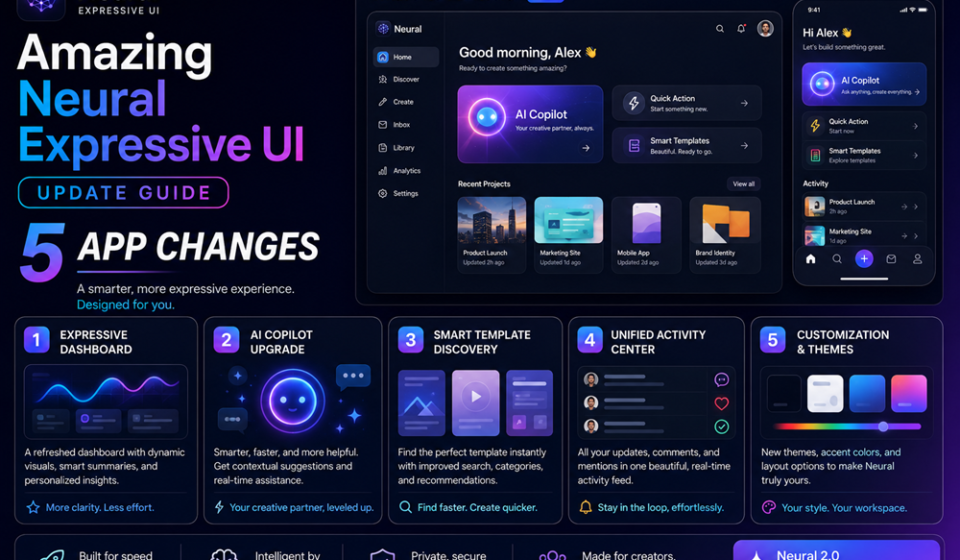

The traditional chatbot layout is officially a thing of the past. Unveiled at Google I/O 2026, the sweeping rollout of the Neural Expressive UI update marks the most aggressive interface redesign since the launch of the Gemini app. Google is systematically dismantling the classic “giant wall of text” formatting that has dominated the consumer AI space for years, replacing it with a fluid, visually responsive design philosophy.
Taking design inspiration from the continuous kinetic motion of atomic energy fields, this layout shift is not just a cosmetic skin. It completely redefines how you prompt, interact with, and digest machine intelligence on daily screens.
Whether you are scrolling on an iPad, managing pipelines on a desktop, or flashing scripts on an Android phone, understanding the mechanics of the Neural Expressive UI update is vital to maintaining an efficient workflow.
The Problem: The Exhausting Friction of the Text-Heavy Chat Box
Until recently, engaging with large language models felt remarkably static. Users would submit a short query and receive massive blocks of unformatted prose in return. This text-heavy delivery forced heavy scrolling marathon sessions, creating significant cognitive fatigue for power users trying to parse actionable technical insights, code strings, or cross-platform data points quickly.
The massive deployment of the Neural Expressive UI update directly targets this presentation bottleneck. By treating the workspace as an interactive canvas rather than a flat messaging board, the app formats output tokens into rich, magazine-style layouts. Information scales dynamically, ensuring that key data elements stand out instantly upon generation.
Deep Dive: The Core Mechanics of the Neural Expressive Layout
To successfully pilot this environment, you need to understand the visual primitives holding the new interface framework together. Powered directly by the blazing processing speeds of Gemini 3.5 Flash, the application redraws layout frames instantly.
| Design Element | Interface Primitive | Primary Purpose & UX Behavior |
| Floating Input Pill | Detached Entry Bar | Floats above your mobile keyboard workspace, clearing out clutter to leave room for multi-app tools. |
| Vibrant Gradient Glow | Kinetic Thinking State | Replaces old spinning loader icons with a rolling wave of colors to show active processing. |
| Adaptive Canvas Blocks | Multimedia Outputs | Automatically formats text data into charts, timelines, or collapsible data summaries. |
| Overstuffed Tools Hub | Unified Expansion Menu | Gathers attachments, custom notebook settings, and profile controls into one sidebar drawer. |
By prioritizing visual expression over flat text layouts, the Neural Expressive UI update transitions the Gemini app from a simple conversational tool into an ultra-modern, proactive dashboard experience.
Step-by-Step Guide: Navigating the Reconfigured App Workspace
Finding hidden settings menus or triggering specific media layouts can initially trip up seasoned users. Use this procedural walkthrough to master the rearranged interface layout easily.
1.Launch the Redesigned Gemini App:Initial Workspace Check.
Open the application platform on your mobile phone or desktop device. Verify the clean home display screen, which now showcases a prominent, centered welcome logo over a subtle gradient background.
2.Locate Your Hidden Preferences Hub:Step 2.
If your legacy sidebar gear icon seems completely missing, don’t panic. The Neural Expressive UI update moves your configuration menus directly under your profile avatar node in the top right corner.
3.Initialize the Combined Attachments Menu:Step 3.
Tap the expanded plus icon nested inside the floating pill-shaped input box. This triggers the new consolidated hub, giving you fast access to images, videos, and your Personal Intelligence toggles.
4.Trigger Rich Multimedia Layout Cards:Step 4.
Write your analytical research queries. To unlock the layout capabilities of the Neural Expressive UI update, include explicit presentation parameters in your instructions, such as: “Format this tracking data as an interactive timeline grid.”
5.Manage Spoken Outputs with Gemini Live:Step 5.
Activate a continuous speech session. Thanks to the updated canvas layout, you can now scroll back, copy, or share text snippets from your ongoing voice chats without interrupting your active audio loop.
Expert Optimization Tips for High-Density Layouts
- Manually Force Compact Text Spacing: If the increased button padding feels a bit spacious on high-resolution desktop screens, clear your browser zoom back to 100% or utilize quick shortcut adjustments (
Cmd/Ctrl + -) to pull information density closer together. - Rely on Explicit Layout Directives: Don’t let the model default to basic list blocks. Command the layout to present information structurally by using style prompts like: “Render this response using explicit bold headers and organized comparative table matrices.”
- Isolate Your Script Modules in Notebooks: Keep your standard workspace clean by moving extensive prompt guidelines or code rules out of the primary chat window and straight into the newly arranged Notebooks directory hidden inside the main library panel.
Common Interface Pitfalls to Avoid
- Searching the Bottom Left for App Settings: Attempting to locate the historical preferences cog wheel in the lower left margins will stall your workflow. The layout shift moves all account management utilities behind the upper-right profile menu.
- Overloading the Floating Pill with Multiple Media Attachments: Stuffing varied file extensions simultaneously into the floating pill input can occasionally cloud prompt focus. Upload references cleanly and link them to explicit text goals.
- Expecting Dynamic Layouts from Ultra-Short Prompts: Passing a generic three-word request often causes the system to drop back to basic paragraph prose. Give the engine detailed instructions to let the visual rendering capabilities stretch legs.
Pros and Cons of the Neural Expressive Shift
Pros
- Superb Information Scannability: Breaking up walls of text with bold headlines and graphical cards allows creators to digest data insights in seconds.
- Smoother Gemini Live Workflows: The ability to review and interact with voice text histories without halting the audio call is a massive step forward.
- Stunning Visual Aesthetics: The fluid, color-cycling kinetic glow states make the application workspace feel incredibly alive and welcoming.
Cons
- Aggressive Screen Real Estate Use: The enlarged input pill and increased bubble padding can feel a bit spacious on small mobile phone screens.
- Buries Legacy Tools Behind Extra Menus: Moving core toolboxes and extension keys deeper into secondary drawers adds an extra click for power users.
Real-World Productivity Use Cases
- Rapid Executive Brief Appraisals: Business managers leverage the updated graphical timelines to instantly visualize complex market reports without reading through extensive multipage documents.
- Fluid On-The-Go Voice Invoicing: Traveling service providers run extended hands-free voice sessions to log task balances, simultaneously copying generated itemized sheets straight to client channels without dropping the live call.
- Sleek Technical Script Layouts: Systems developers use the rich code block elements to audit automated scripts, using the dynamic font-scaling features to review deployment formatting adjustments clearly.
Interface Overhaul Summary & Next Steps
The nationwide implementation of the Neural Expressive UI update firmly cements a major evolution in how we interact with consumer AI applications. By trading rigid text walls for fluid interactive blocks, kinetic color glows, and highly scannable layouts, the Gemini app positions itself as an engaging canvas. Start adapting today by exploring the updated profile settings tray, organizing your assets inside the Library drawer, and utilizing explicit layout instructions to unlock the true potential of this design transformation.
Explore More Google Products & Tools
To see how these new high-speed models fit into Google’s broader software roadmap, check out our comprehensive Google Product Index Categories Hub on the homepage to browse through active enterprise toolsets.
Google Product Index Categories Hub:
https://www.google.com/search?q=https://gproductindex.com/
To track how these new tools fit into the wider landscape of active and legacy applications, you can explore our comprehensive Google Products Database Hub right on our homepage.
Google Products Database Hub:
10. FAQ Schema
Where did my app settings gear icon go after the Neural Expressive UI update?
The recent redesign removes the historical cog wheel from the bottom left sidebar area. You can access all of your extensions, account preferences, and application setting options by clicking on your user profile picture icon located in the upper right corner of the interface.
Does the new kinetic gradient glow indicate the model is thinking?
Yes. The fluid, color-cycling gradient animations tracking across the top half of the screen serve as the updated active processing status indicator, stepping in to replace the classic spinning loading graphics utilized in older software builds.
Can I view visual elements inside the chat interface automatically?
While the application is optimized to deliver media cards, timelines, and rich data illustrations natively, you can guarantee these highly scannable components populate by explicitly requesting a visual or tabular matrix format inside your written instructions.